Productivity • AI Tools • PDF
How to Summarize PDFs Using AI (Step-by-Step)
Summarizing a long PDF doesn’t need to take hours. With AI, you can extract key points, build clean notes, and understand the document faster if you follow a simple process that keeps accuracy high.
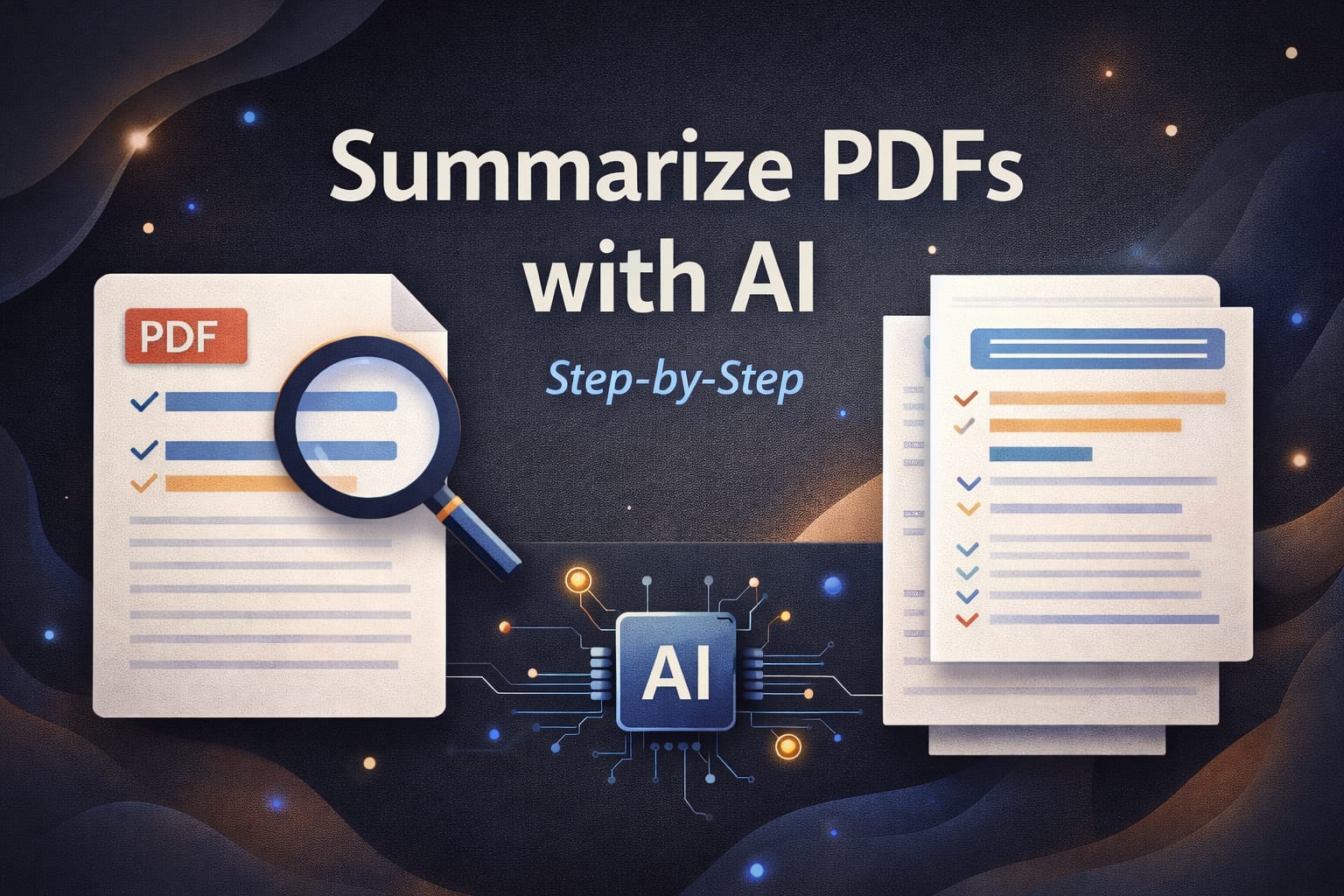
PDFs are everywhere bank statements, business reports, training manuals, research papers, and long eBooks.
The problem is that most PDFs are dense. Even when the writing is good, it takes time to find the important parts.
AI can help, but only if you guide it properly. If you simply ask “summarize this,” you often get a shallow summary that misses the real meaning.
The method below is easy to follow and gives better results because it keeps the AI focused and makes verification simple.
Clarity (so you understand the content fast) and accuracy (so you don’t trust the wrong point). This guide balances both.
Step 1: Decide what kind of summary you need
Not every PDF needs the same summary. A research paper summary is different from a policy document or a user manual.
Before you upload the file, decide the output in one line. This makes the AI much more helpful.
If you need quick understanding
Ask for a short summary with the core message, key points, and conclusions. This is perfect for reports and long articles.
If you need study notes
Ask for structured notes with headings, definitions, examples, and a short list of questions for revision.
Step 2: Upload the PDF to an AI tool that supports documents
Use an AI tool that can read PDFs directly, not just plain text. When the tool reads the file itself, it can preserve structure
like headings, sections, and tables better than copy-pasting.
If the PDF is scanned (image-based), use a tool that supports OCR or convert it to text first. Scanned PDFs can reduce accuracy
because the AI may miss words or headings.
Step 3: Use the “guided summary” prompt (copy-paste)
This prompt gives a better output than a basic “summarize” request because it forces structure and reduces generic filler.
Replace the bracket parts and paste it into your AI tool.
Summarize this PDF for: [student / manager / client / beginner].
Goal: [quick understanding / study notes / decision making].

Output format:
1) One-paragraph summary (6–8 lines)
2) Key points (8–12 lines, short sentences)
3) Important terms (with simple definitions)
4) Final conclusion / recommendation (if any)
5) 5 questions I should ask to understand it better

Rules:
- Use only information from the PDF
- If something is unclear or missing, say “not mentioned”
- Keep language simple and easy to understand
If the PDF is very long (100+ pages), summarize section-by-section. You’ll get better detail and fewer mistakes.
Step 4: Extract the “action summary” (most useful for work)
If you’re summarizing for business or professional use, this is the part that matters most:
what decisions, tasks, risks, or next steps come from the PDF.
From this PDF, extract an action summary:
- Decisions required (if any)
- Deadlines or timelines mentioned
- Risks / warnings / limitations
- Recommended next steps
Keep it short and practical.
Step 5: Verify accuracy (simple and fast)
AI summaries can be wrong when the PDF is unclear, scanned, or full of complex tables.
You don’t need to fact-check every line. You just need to verify the most important claims.
The fastest method is to pick 3–5 key points from the summary and ask the AI to point to where they appear in the PDF.
If your tool can show page numbers or quotes, use that.
Verification check:
For each key point below, tell me where it appears in the PDF (page number or section title).
If it doesn’t appear clearly, say “not confirmed”.

Key points to verify:
1) [paste point]
2) [paste point]
3) [paste point]
Step 6: Create a clean one-page note (ready to save)
After summarizing, don’t leave it as a long AI answer. Convert it into a one-page note you can reuse later.
This is especially helpful for students and busy professionals.
Create a one-page note from this PDF summary:
- Topic (1 line)
- Core idea (3 lines)
- Key points (8–10 short bullets)
- Important terms (5–8)
- My next step (1 line)
Keep it simple and easy to review.
Common mistakes (and how to avoid them)
The most common mistake is asking for one big summary of a huge PDF and trusting it blindly. If the document is long,
break it into sections: introduction, main chapters, and conclusion. You’ll get deeper summaries and fewer errors.
Another mistake is ignoring tables, charts, and footnotes. If the PDF has important data, ask the AI specifically to extract
numbers, definitions, and constraints. Otherwise, the summary may focus only on the written paragraphs.
FAQ
Which PDFs are hardest for AI to summarize?
Scanned PDFs, low-quality images, and documents with many complex tables are harder. If possible, use OCR or get the original text-based PDF.
Can AI summarize a 200-page PDF?
Yes, but accuracy is better if you do it section-by-section. Start with a high-level outline, then summarize each chapter or section.
How do I use the summary for studying?
Ask for definitions, examples, and revision questions. Then convert the output into one-page notes so you can review quickly.