Reels have become one of the most powerful ways to connect with audiences on platforms like Instagram, Facebook, and YouTube Shorts. Short, engaging, and visually striking videos are more likely to go viral than long-form content, and with the rise of AI tools, the creative possibilities have expanded dramatically. One platform making this process easier and more innovative is Runway ML. Known for its advanced AI video editing capabilities, Runway ML allows creators to produce stunning Reels without expensive equipment or a steep learning curve.
If you have been wondering how to make scroll-stopping Reels using Runway ML, you are in the right place. This guide will take you step-by-step through the creative process, from concept to final upload, and show you how to make the most of Runway ML’s AI-powered features.
Why Use Runway ML for Reels?
The biggest advantage of Runway ML is that it gives creators access to professional-level video editing tools without needing years of editing experience. You can remove backgrounds, enhance footage, generate unique visuals, and even create entirely AI-generated scenes in just a few clicks. Whether you are a social media influencer, a marketer, or simply a creative hobbyist, Runway ML can save you hours of work while boosting the quality of your content.
Traditional video editing requires multiple tools, plugins, and manual effort to achieve cinematic effects. Runway ML streamlines this process by offering a clean, web-based interface where you can edit, animate, and enhance videos with AI assistance. This is perfect for Reels, where speed and creativity are key.
Getting Started with Runway ML
Before creating your first Reel, you need to set up your Runway ML account. Visit the Runway ML website, sign up for an account, and choose the plan that fits your needs. While there is a free version with limited features, paid plans unlock higher resolution exports, more projects, and advanced AI models.
Once you are logged in, you will be greeted by an intuitive dashboard. This is where you can start new projects, upload your video clips, or generate entirely new footage using AI tools such as Gen-1 and Gen-2. The layout is user-friendly, making it easy even for beginners to navigate.
Planning Your Reel
Every good Reel starts with a strong idea. The format may be short, but you still need to think about your story, your visuals, and the emotions you want to evoke. Runway ML is at its best when you have a clear vision. Decide whether your Reel will be educational, entertaining, inspirational, or promotional. Think about your target audience and what will make them stop scrolling.
Once your concept is ready, gather any footage you already have. This could be video clips shot on your phone, stock footage, or completely AI-generated content. Runway ML allows you to mix these seamlessly.
Editing Your Footage in Runway ML
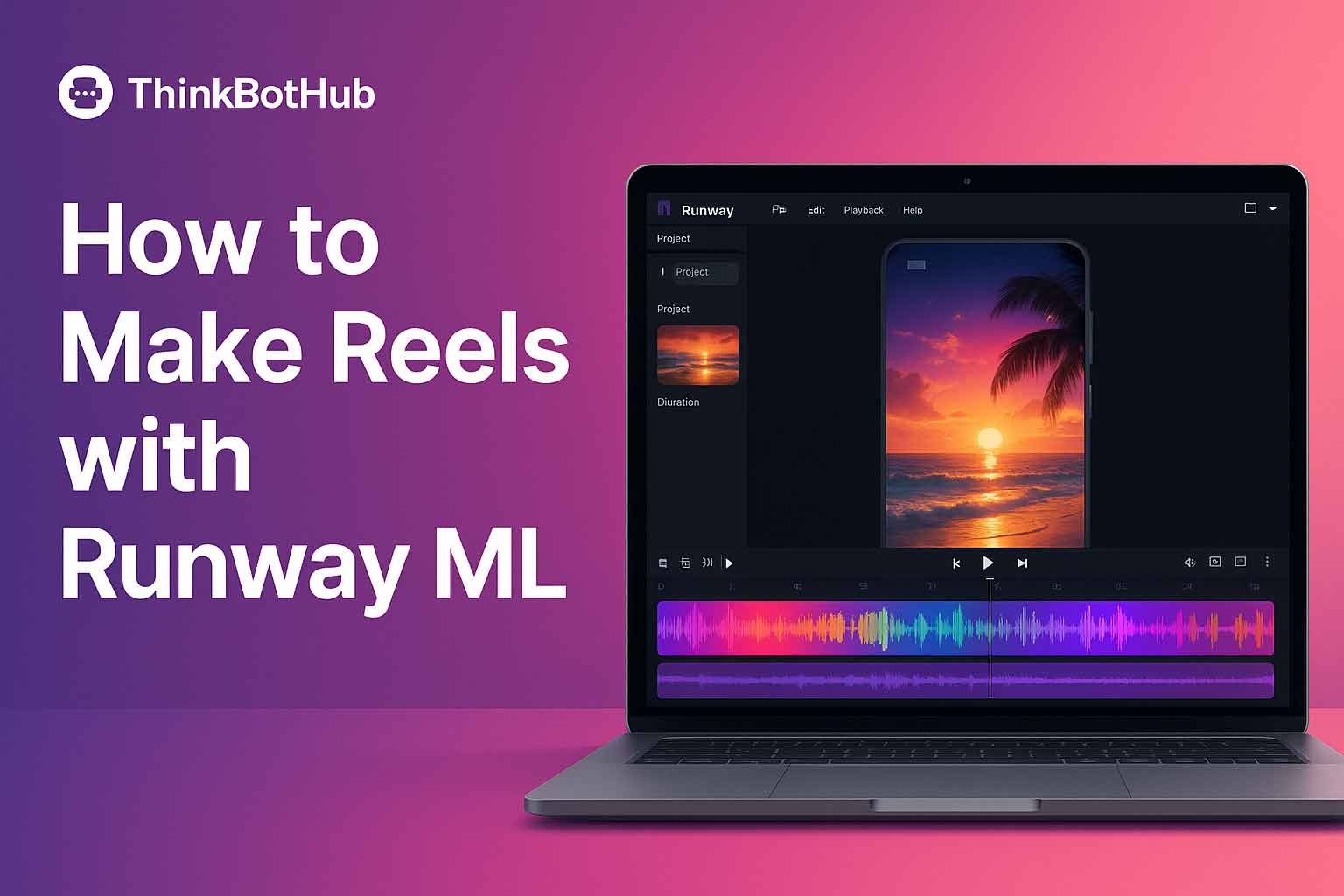
Uploading your clips to Runway ML is straightforward. Once inside your project, you can drag and drop your footage into the timeline. One of the standout features for Reel creation is the AI-powered background removal. With just a few clicks, you can isolate your subject and replace the background with anything, from a tropical beach to a futuristic cityscape, without green screens or complicated masking.
If your footage needs improvement, Runway ML offers tools for upscaling, color correction, and motion tracking. This means you can enhance low-quality videos, fix lighting issues, and keep your subject in focus even during movement. The real magic, however, lies in Runway’s generative capabilities. You can transform existing clips into a new style, add animated elements, or even turn a rough sketch into a moving video.
Adding AI-Generated Visuals
Reels are all about standing out, and nothing catches attention like visuals people have never seen before. With Runway ML’s Gen-2 model, you can create completely new video sequences from text prompts. For example, you could type “a slow-motion shot of neon waves crashing at night” and the AI will generate it for you. This can be blended with your real footage to create surreal, eye-catching effects that grab attention instantly.
You can also use Runway to animate still images, making them move as if they were part of a video shoot. This is a game-changer for creators who want cinematic shots without physically filming them.
Syncing with Music and Text Overlays
Once your visuals are ready, it’s time to bring them to life with music. Reels perform best when they sync perfectly with trending sounds or original audio. Runway ML allows you to import audio tracks and align your video cuts to the beat, making your Reel more engaging.
Adding text overlays is also easy. You can create animated captions, titles, and calls-to-action directly within Runway. This is especially useful for Reels where sound might be muted on viewers’ devices, ensuring your message still comes across.
Exporting Your Reel
When your Reel looks exactly how you want it, it’s time to export. For Instagram and Facebook Reels, use a vertical aspect ratio (9:16) and export in MP4 format for best compatibility. Runway ML allows you to export in high definition, ensuring your visuals remain crisp and professional.
After exporting, upload your Reel to your chosen platform, add hashtags, and write a compelling caption to boost discoverability. Remember that SEO applies to Reels too, use keywords in your captions and hashtags that match your niche.
Tips for Making Viral Reels with Runway ML
The most successful Reels combine creativity, quality, and timing. Keep your videos short and impactful, usually between 7 and 15 seconds for maximum replay value. Hook your audience in the first three seconds with something unexpected or visually stunning. Leverage trending audio but pair it with unique visuals so your content doesn’t feel recycled. Finally, be consistent. The more Reels you publish, the better your chances of going viral.